Meet Trimster, the video barber for macOS
Trimster is the easy way to save clips from an MPEG-4 video.
Set your start point, set your end point, and save. It’s that simple.


Features
So easy, yet so precise.
Split a long video into shorter clips,
remove scenes you don’t want,
or shave a little off the top.
Your trimmed clip is saved as a new file,
and it’s fast because there’s no conversion or re-encoding.
Made for MPEG-4
You can trim any unprotected, exportable MPEG-4 video. Compatible extensions include MP4, M4V, MPG, MPEG, and MOV.
Simply Powerful
The simple and streamlined interface has everything you need for precise trimming. Keyboard shortcuts make it a breeze.
Save the Date
Want your saved clip to have the original file’s created and modified timestamps? Or its Finder tags? Both options are in Settings.
Detail oriented
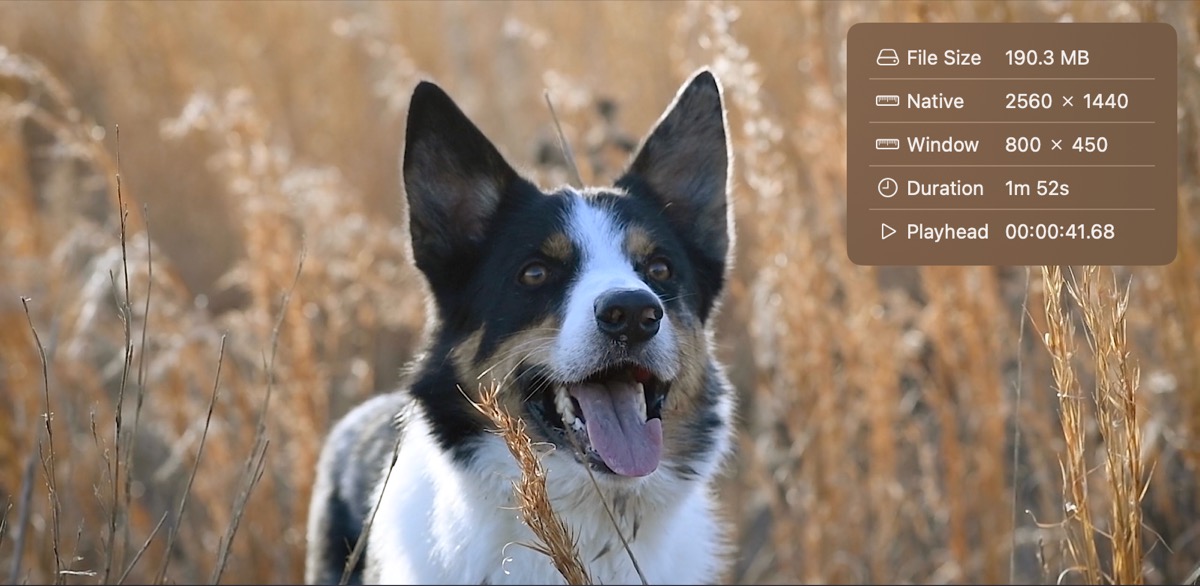
Enable the detail overlay for at-a-glance information about the source video and the exact location of the playhead.
Keyboard Shortcuts
There’s a key for that.
Every action is at your fingertips — literally.
Press a highlighted key below to learn about its shortcut.
1
2
3
0
delete
i
o
lock a
s
z
/
◀
▶
Support
Got questions? We’ve got answers! (probably)
Browse some common questions and helpful topics below.
Why won’t Trimster open my MP4 file?
The MP4 format is a container that can hold various types of audio and video data. Most likely, your MP4 contains a video format that can’t be natively edited, so Trimster can’t open it. You can use a tool like Handbrake to convert the video to MP4 using the H.264 encoder, then Trimster will be able to open it.
Still wondering about something?
Visit our
support forums
to get in touch.
Get Trimster
Take a little off the top.
Or off the beginning. Or off the end. Or wherever.